Professor Bubbles KidTube Lock (short name: KidTube Lock) uses two Android settings: the Appear on top permission and the KidTube Lock Guardian accessibility option. Together they support session protection. A parent should review and consent to the in-app Terms and Privacy links before enabling them, and set the parent PIN. Permissions may need to be enabled again if Android or device settings change.
The screenshots below are from a Samsung phone. On other Android phones menus and availability may differ with Android version and manufacturer. These are existing reference screenshots of an earlier captured UI, not newly captured v1.10.8 screens.
Part 1 of 2
This allows KidTube Lock to show its lock overlay above the selected app. It supports protection but does not guarantee that every navigation route is blocked.
Open your phone's Settings and tap Apps.
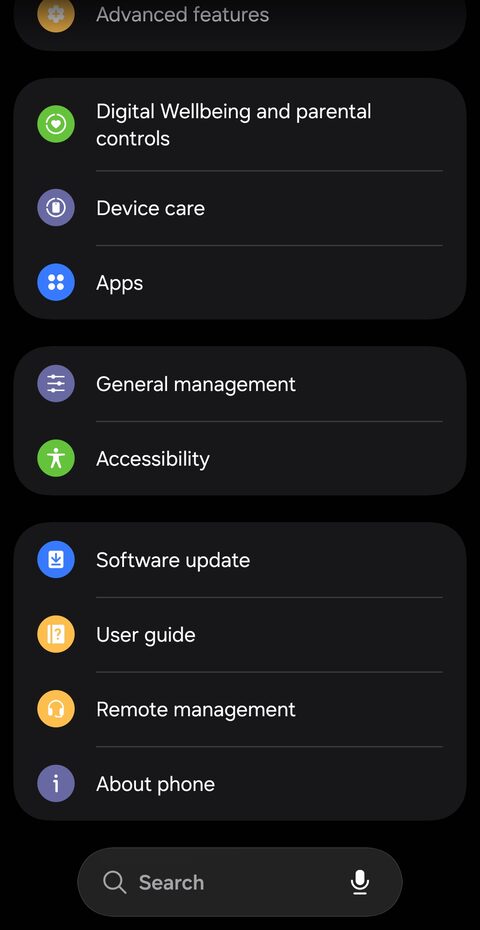
Scroll to KidTube Lock in the app list and tap it.
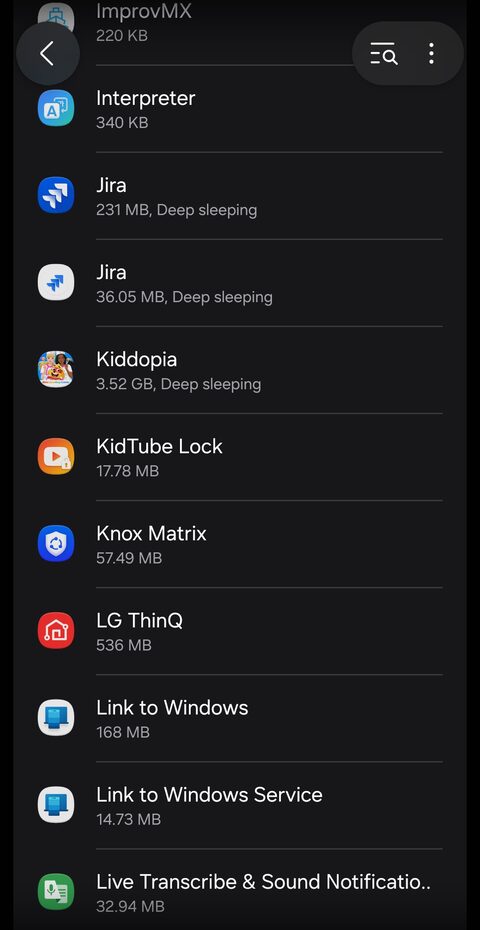
On the App info screen, scroll down past Privacy and Defaults.
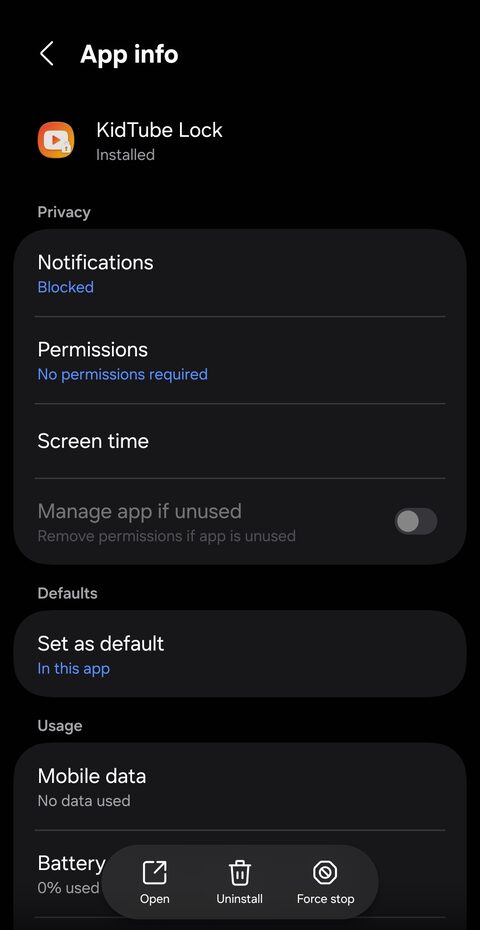
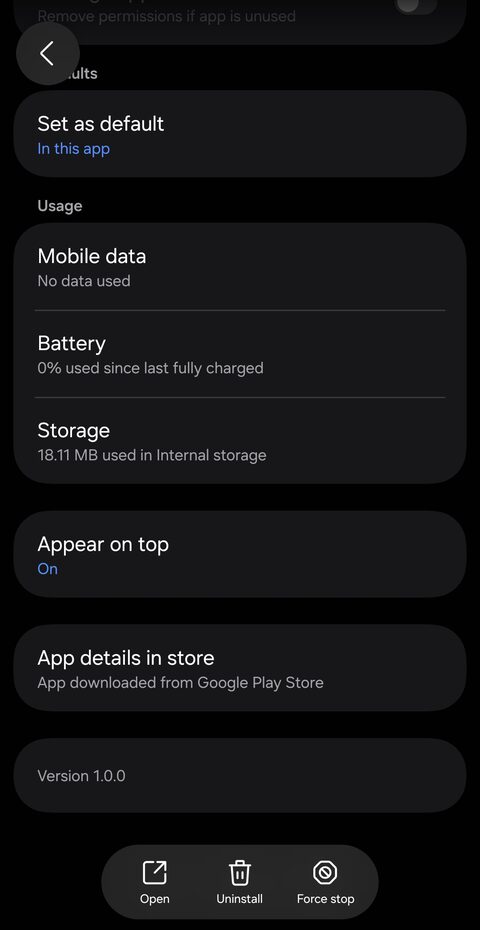
Tap Appear on top and switch it On.
Part 2 of 2
Guardian uses limited app/UI information to support keeping sessions in the selected app and to capture watched-video titles. Review the Android accessibility consent screen before enabling it.
Back in Settings, tap Accessibility.
Tap Installed apps near the bottom.
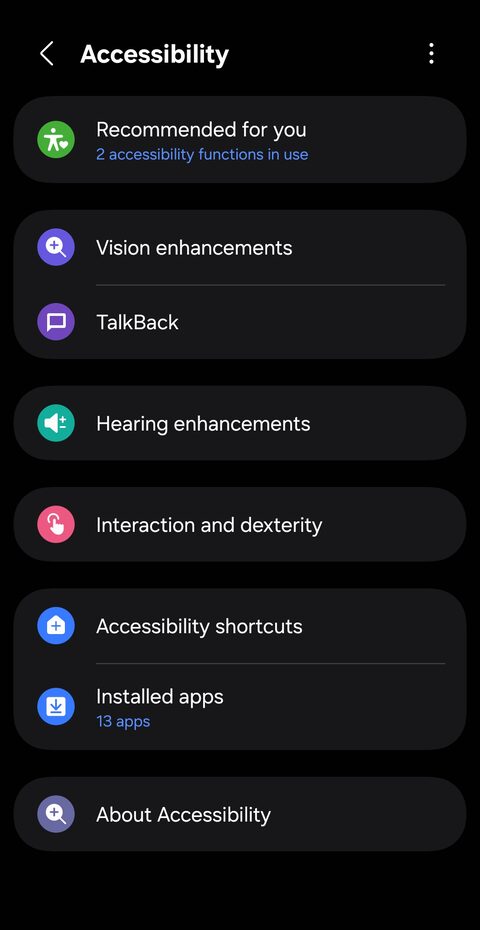
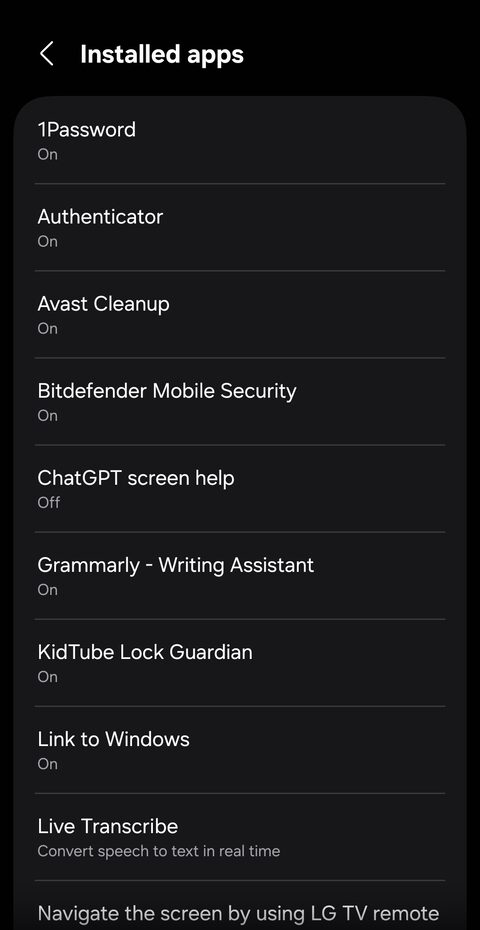
Tap KidTube Lock Guardian in the list.
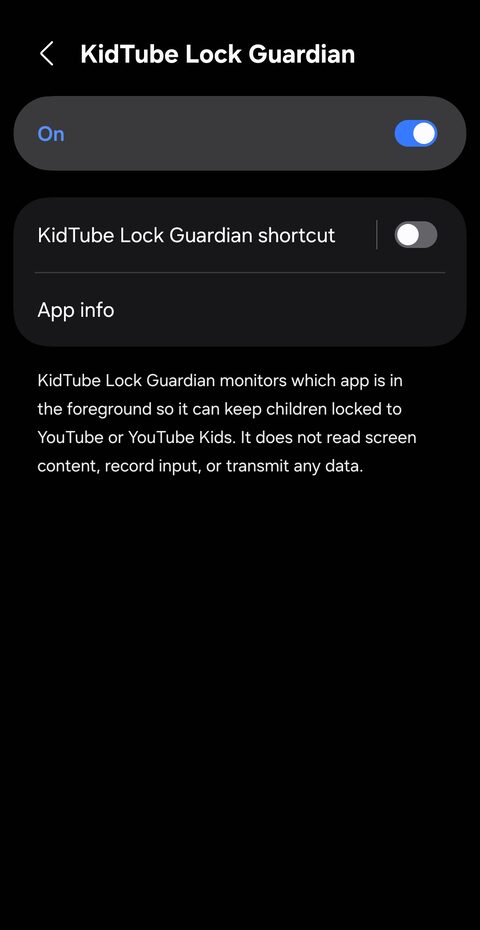
Switch it On and confirm. That's the last step.
Open KidTube Lock, choose YouTube or YouTube Kids, and set your PIN. Optionally set a session timer and secret unlock taps, then tap Lock (shown as Lock Screen in these screenshots). A parent can exit with the PIN at any time.
Optional timer: Choose automatic unlock when time runs out, or remain locked until the parent enters the PIN. You can also choose no timer. Optional age ranges Under 5, 5–7, 8–12 and 13+ suggest a time only; they never automatically enforce it. The parent can change the suggested choice.
Single-video mode: Optional “Pin to a video” focuses the session on a selected video instead of free browsing. It is not a content filter or a guarantee against every third-party UI change.
Protection and limits: Android screen pinning/kiosk functionality is used where permitted. Protective features attempt to prevent leaving through certain navigation, swipe, notification and PiP routes, and restrict certain YouTube profile/upload routes. YouTube's mini-player expands back in YouTube. Outcomes depend on Android version, permissions, device mode and the third-party app UI—not an escape-proof or cross-device guarantee.
KidTube Lock does not filter content inside YouTube. The app itself has no ads, but YouTube may independently display ads and links and collect online data under its own policies.
Device-owner mode is a separate, guided setup path only for eligible devices. It is not enabled simply by granting the regular permissions above, and not every device can use it. Follow the app's guided device-owner instructions and review its requirements before proceeding.
When the app is configured as device owner, Google Play is disabled during a session and restored afterward. Google Play is not disabled in regular mode. Do not assume device-owner protection is available just because a regular session can start.
For more, read the parent FAQ and the in-app Terms/Privacy links. Publisher Terms and Privacy are also available online.
